
|

|
Dialup: How do I change the default dial-up connection, in Outlook Express?
In order to change the default dialup connection - just follow the simple steps listed below. This guide assumes that you are using Outlook Express.
When you use Outlook Express, you may receive an error message telling you that a dial-up networking connection is already established - and that you will need to change the dialup connection in order to check your email. The message is similar to below;
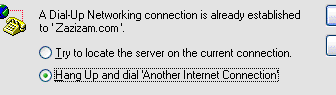
This is caused if your email account is set to use different internet settings to your default Internet connection. You can correct this so you do not have to redial a connection - by following the below;
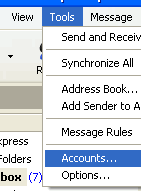
First of all, you will need to be in the Outlook Express program. You will need to go to the 'Accounts' menu option - which can be found in the 'Tools' menu;
- For each email account you have, listed on the 'Mail' tab, carry out the following:
- Highlight the account with a single left click of your mouse, then click on Properties
- Select the 'Connection' tab
- Remove the tick from the checkbox marked 'Always connect to this account using...'
- Click on 'Apply', then click the 'Ok' button
- Once you have completed the above steps for all your email accounts, click on 'Close' to go back to Outlook Express.
Go 'back' to the page you were viewing
|
|

Pay as you go
No monthly charges. Access for the price of a phone call
Go>
Unmetered
Flat rate dialup access from only £4.99 a month Go>
Broadband
Surf faster from just £13.99 a month Go> |
Save Even More
Combine your phone and internet, and save on your phone calls
More Info> |
This weeks hot offer
 24: Series 5
In association with Amazon.co.uk £26.97 |
|




